|
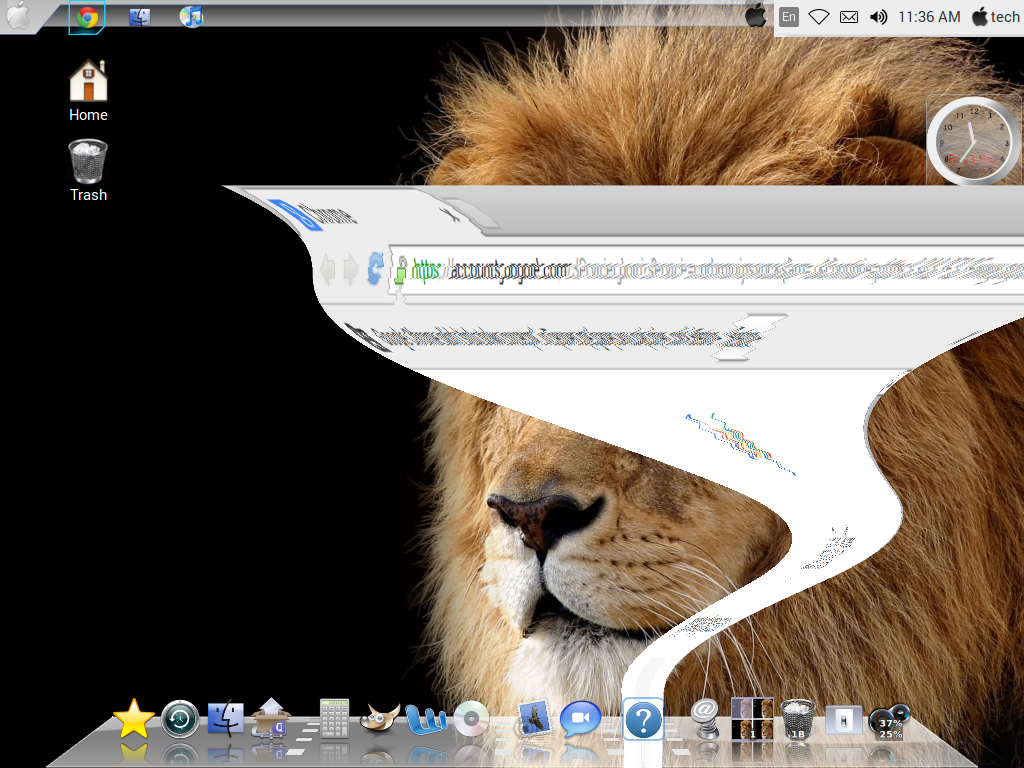
| Preview after customizing |
Zorin OS is a multi-functional operating system designed specifically for newcomers to Linux. It is based on Ubuntu which is the most popular desktop Linux operating system in the world. Zorin OS has a unique Look Changer program that helps in customization of Zorin OS. It allows users to change the user interface at the touch of a button. Other unique programs include Internet Browser Manager, Background Plus and more. Zorin OS gives users more flexibility by including preinstalled WINE and PlayOnLinux that run Microsoft Windows programs in Zorin OS with the help of.
Step1: First go to the Download page and download Zorin OS. Download Link: http://zorin-os.com/index.html.When the download is finished burn the image file to a blank DVD. When the burning process is completed insert the DVD into the computer and restart with it still in. The computer should boot from the DVD, if not you should change the settings in the BIOS or press F12 (or whatever key it is to select the boot device) while booting up again.
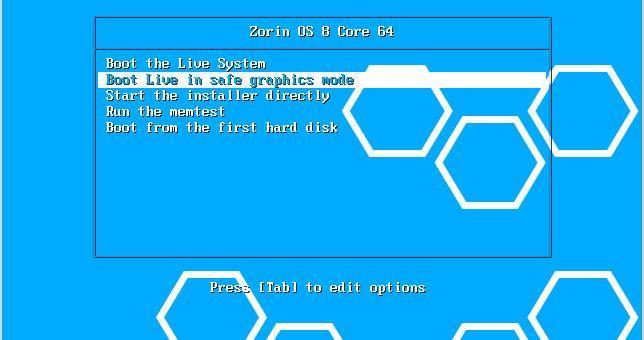
Step2: Press start the installer directly option to install it or just boot the live system to start the LiveDVD which run the operating system off the DVD without installing it onto your computer to get a preview.
NOTE: The Live DVD runs much slower than after the full installation.
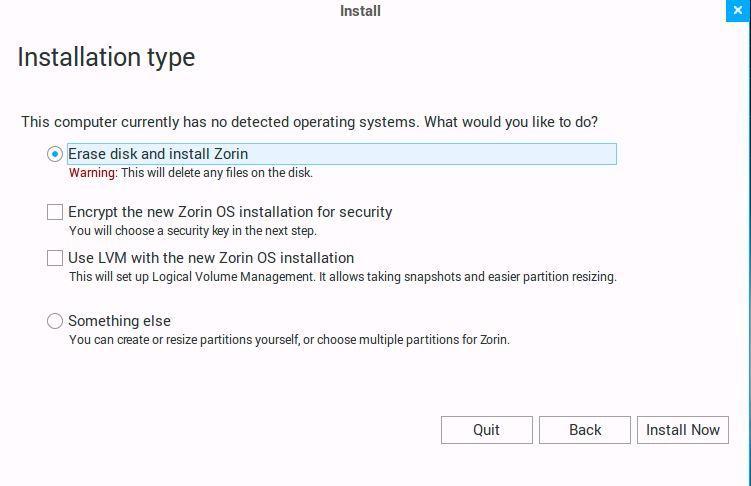
Step3: Later you will be prompted to make a new partition; a partition is a thing you make if you want to install an alternate operating system. This slices your Hard Drive to allow the installation of another operating system. The minimum size for Zorin OS Core is 5 Gigabytes (Just remember to leave enough space for your first operating system)
. 
Step4: During the installation you will be asked to select your language (over 55 are available), your location, time settings, keyboard layout, partitioning settings and import your files, settings and user accounts and password. The installation should take 10 minutes up to an hour depending upon your system performance.
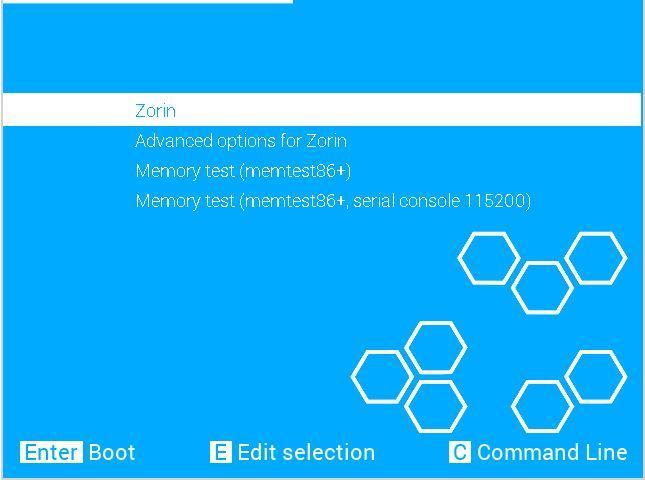
Step5: After the installation you will be prompted to restart the computer, after the restart the computer should boot up into a menu where you choose which operating system you want to start. To select one use the arrow keys to highlight an option and press the Enter key to start the highlighted one.
Now you should have Zorin OS installed to your computer which is something look like this 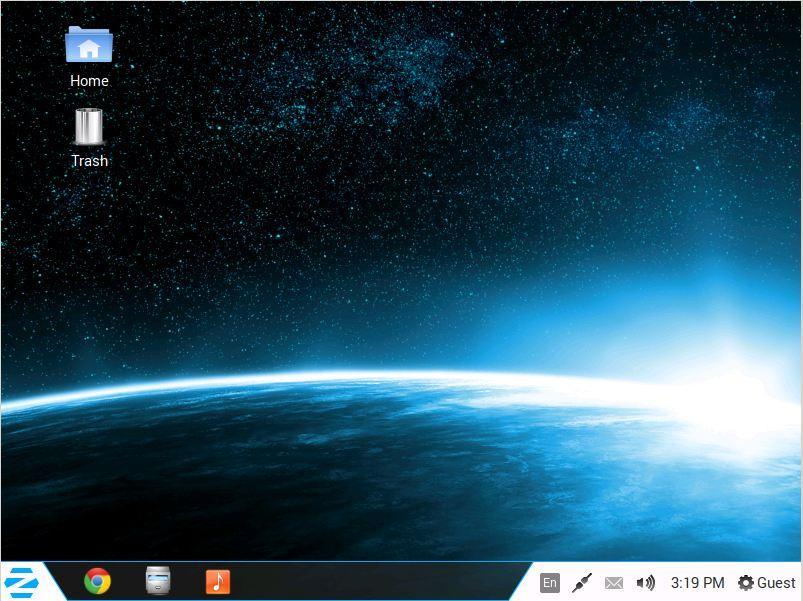
but you can easily customized it according to your need here we are going to customized it to look like a mac os.
Customization
Step 6: Install Latest Cairo Dock from their site http://glx-dock.org/ after installing execute this command to enable it cairo-dock –o or you can also install it run these command in terminal. Once it installed right click on dock and go to config and give effects according to your choice.
sudo add-apt-repository ppa:cairo-dock-team/ppa
|
sudo apt-get update
|
sudo apt-get install cairo-dock cairo-dock-plug-ins
|
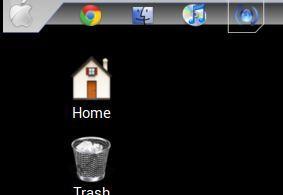
Step7: Install New Apple Logo in Launcher
wget -O apple-logo.zip http://drive.noobslab.com/data/themes/mac/apple-logo.zip
|
sudo unzip apple-logo.zip -d /usr/share/unity/5/
|
|
Step 8: To Install Mac OS X Lion Theme and Icons on zorin.
sudo add-apt-repository ppa:noobslab/themes
|
sudo apt-get update
|
sudo apt-get install mac-ithemes-v2-noobslab
|
sudo apt-get install mac-icons-v2-noobslab
|
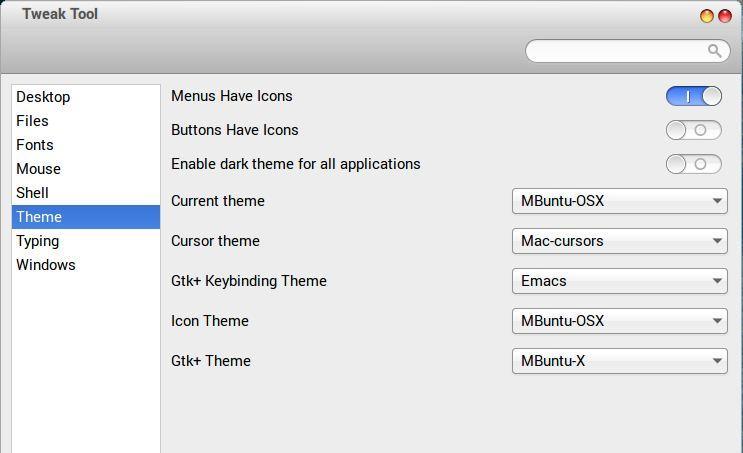
Step 9 : After installing theme go to system tools ->preference –>tweak tool from where you can set your new mac theme.
Step10: To install Mac cursor type following command in terminal.
wget -O mac-cursors.zip http://drive.noobslab.com/data/themes/mac/mac-cursors.zip
|
sudo unzip mac-cursors.zip -d /usr/share/icons/; rm mac-cursors.zip
|
cd /usr/share/icons/mac-cursors
|
sudo chmod +x install-mac-cursors.sh uninstall-mac-cursors.sh
|
sudo ./install-mac-cursors.sh
|
Step11: Now, add some effects to your zorin.First install compiz setting manager, for this type the following command
sudo apt-get install compizconfig-settings-manager
Now, open compiz and go to effects select animations option and select minimize option ->select current animation and click on edit, it will pop up a window from where select Magic Lamp option. Same procedure for changing unminimize animation
Finally you got the Your customized Maczorin Os